
7/30
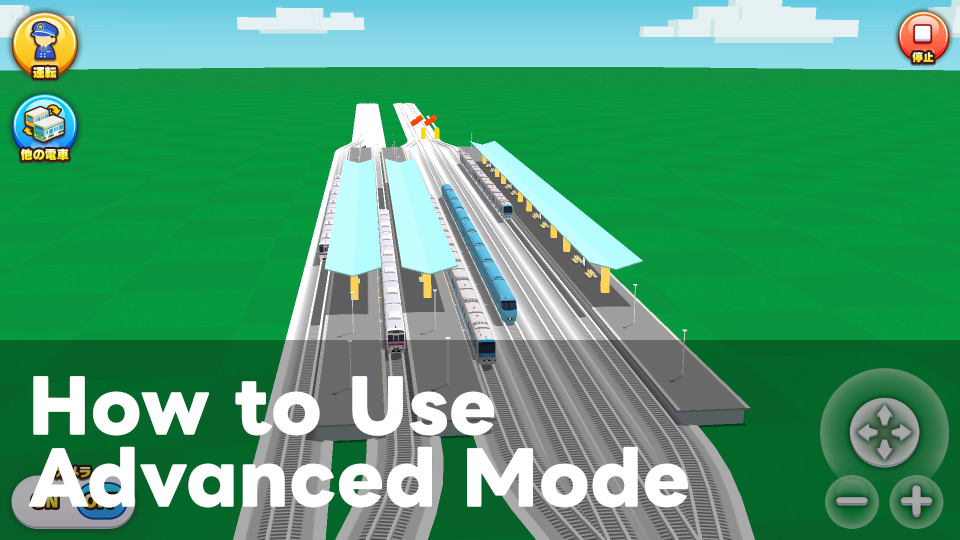
Starting with v4.0.0, Advanced mode can be turned on from Options in Settings.
When Advanced mode is turned on, you can create more complex rail layouts, such as double-track layouts.
Contents
- What is Advanced mode?
- How to turn on Advanced mode
- What you can build
- Grid size and placement units
- Building double-track layouts
- Offset Rails
- Using curves with different radii
- Short straight rails
- Island stations and parallel-rail recognition
- Rotating station buildings and platforms
- Notes
What is Advanced mode?
Advanced mode is a mode that lets you place rails more freely than usual.
In the normal mode, available rails and placement candidates are limited to make layouts easier to build. In Advanced mode, additional rail candidates are shown so you can build double-track and parallel-rail layouts.
How to turn on Advanced mode
Advanced mode can be turned on from Settings in the game.
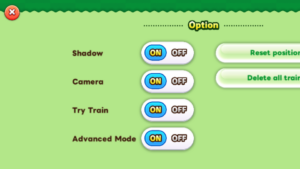
- Open Menu
- Open Settings
- Open Options
- Turn on Advanced mode
Once it is turned on, more rail candidates will appear when adding rails.
What you can build
Advanced mode makes it easier to build layouts such as:
- Double-track layouts
- Parallel rails
- Branches from a single rail to double tracks using Offset Rails
- Rail layouts using curves with different radii
- Station layouts using island stations
Grid size and placement units
In Train Go, rails are placed based on the green grid shown on the ground.
One green grid square has a length of 5. The standard Straight Rail has a length of 10, so one Straight Rail is equal to two green grid squares.
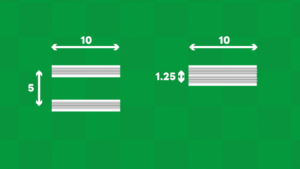
In the normal mode, newly placed Straight Rails can be positioned in steps of 5. In Advanced mode, this placement unit becomes smaller, allowing rails to be positioned in steps of 1.25.
This makes it easier to shift rails little by little and place rails close together, like a double-track railway.
Building double-track layouts
A double-track layout places two rails side by side.
In Advanced mode, rails can be positioned in 1.25-unit steps, making it easier to place rails close together.
Parallel rails can be used to build station layouts for double-track railways, or layouts where multiple rails run in the same direction.
When branching from a single rail to double tracks, or connecting to a nearby parallel rail, use Offset Rails.
Offset Rails
Offset Rails shift the rail sideways without greatly changing its direction.
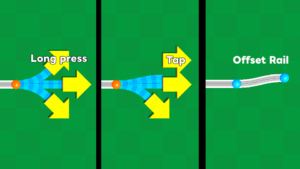
They have a crank-like shape and are used when branching from a single rail to double tracks, or when connecting to a parallel rail.
There are Offset Rails for straight directions and Diagonal Offset Rails for diagonal directions.
When available, long-pressing a curve button switches the candidate to an Offset Rail.
Using curves with different radii
Advanced mode lets you use curves with different radii.
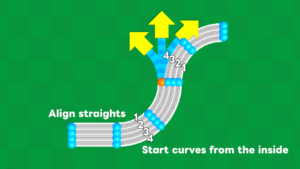
Changing the curve radius makes it easier to connect parallel rails. It also gives you more flexibility when building layouts in limited space.
Curves with different radii appear as candidates when a rail can be placed to run neatly in parallel on the inside.
Because of this, when building parallel curves, it is recommended to start from the inner curve.
Short straight rails
The standard Straight Rail has a length of 10.
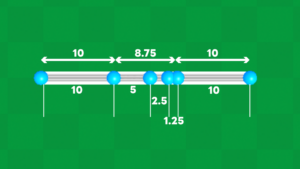
In Advanced mode, in addition to the existing 10 and 5 length Straight Rails, shorter Straight Rails with lengths of 2.5 and 1.25 are available.
Short Straight Rails do not always appear as candidates. They appear only when the distance to the next rail matches their length exactly.
For example, when there is a 1.25 gap, a 1.25 Short Straight Rail will appear as a candidate. When there is a 2.5 gap, a 2.5 Short Straight Rail will appear as a candidate.
Island stations and parallel-rail recognition
Island stations are useful for station layouts placed between parallel rails.
In Advanced mode, when certain island stations are placed, nearby parallel rails can also be recognized as stations.
Narrow island stations recognize parallel rails 2.5 units away. Large island stations available from the shop also recognize parallel rails 5 units away.
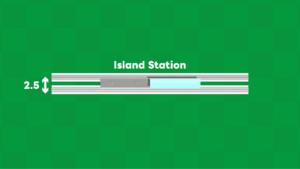
This allows trains not only on the rail where the station was placed, but also on nearby parallel rails, to stop at the station.
Rotating station buildings and platforms
Some station buildings and platforms can be rotated after placement.
Rotating station buildings and platforms lets you adjust their appearance to match the rail direction and layout.
Notes
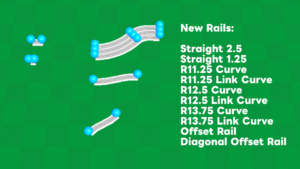
The rails added in Advanced mode are:
The normal mode is adjusted to make it easy to connect rails. Advanced mode gives you more freedom, but connecting rails can sometimes be more difficult.
When building double-track or parallel-rail layouts, plan where the rails should run side by side and where they should curve.
If you are using Advanced mode for the first time, it is recommended to start by testing a short section.